Category: Buying Advice

  • Finding the Right Webcam for Video Meetings

    Finding the Right Webcam for Video Meetings

    I spent thirty years in manufacturing, where if a component wasn’t built to spec, it was scrap. Nowadays, I look at the consumer tech market and honestly, it makes my blood pressure rise. You go online to find the best webcams for video calls, and what do you find? A sea of overpriced, flimsy plastic shells that promise “4K glory” but deliver nothing but grainy, stuttering nonsense the moment your lighting isn’t perfect. It’s frustrating to see people shelling out a hundred dollars for a gadget that feels like a child’s toy and performs even worse.

    I’m not here to sell you on the marketing fluff or the flashy software gimmicks that nobody actually uses. Instead, I’ve put my notepad to work and narrowed things down to the hardware that actually holds up. In this list, I’m going to show you five specific models that offer real reliability, decent optics, and a build quality that won’t leave you frustrated mid-meeting. I’ll tell you exactly which ones are worth your hard-earned money and which ones are just expensive junk destined for the landfill.

    Table of Contents

    The Reliable Workhorse: Logitech C920s

    The Reliable Workhorse: Logitech C920s webcam.

    I’ve seen a lot of gadgets come and go in my time, but this little unit from Logitech is about as close to a standard-issue tool as you’re going to get. It isn’t trying to reinvent the wheel with flashy software or ridiculous gimmicks; it just does its job without throwing a tantrum every time you plug it in. The build quality is decent enough for a consumer device, and the 1080p resolution is actually sharp without looking like an over-processed digital mess.

    For the Professional Setup: Logitech Brio 4K

    For the Professional Setup: Logitech Brio 4K.

    If you’re the type who spends eight hours a day in front of a screen for high-stakes meetings, you might want to step up to the Brio. It’s a bit more of an investment, but the glass lens quality is a notable step up from the cheaper plastic models. It handles tricky lighting conditions—like that annoying sunbeam hitting your desk at 2 PM—much better than the budget stuff, thanks to its decent sensor.

    The Budget Option That Doesn't Suck: Anker PowerConf C200

    The Budget Option That Doesn't Suck: Anker PowerConf C200 webcam.

    Most “budget” webcams I test feel like they were manufactured by someone who has never actually used a computer. They’re lightweight, creaky, and the image looks like it was shot through a layer of Vaseline. The Anker C200 is a refreshing exception to that rule. It has a surprising amount of heft for the price point, and the adjustable field of view is a practical touch that most manufacturers seem to have forgotten.

    The High-End Specialist: Razer Kiyo Pro

    Now, I usually steer clear of “gaming” brands because they tend to prioritize RGB lights over actual engineering, but the Kiyo Pro is a bit of an outlier. The standout feature here is the light sensor. Most webcams struggle the moment the room gets dim, but this one handles low-light environments with a level of competence I haven’t seen in many other consumer-grade sensors.

    The Minimalist's Choice: Microsoft Modern Webcam

    Sometimes, you just want something that stays out of the way and doesn’t require a manual the size of a phone book. The Microsoft Modern Webcam is designed for exactly that. It’s clean, it’s simple, and it lacks all the unnecessary “fluff” that modern tech companies try to shove down your throat. It focuses on the fundamentals of video—clear color reproduction and a decent frame rate.

    The Bottom Line on Buying a Webcam

    Stop paying for “smart” software features that just bloat your CPU; focus on the glass and the sensor quality instead.

    If the mounting bracket feels like flimsy, lightweight plastic, it’s going to wobble every time you type, and no amount of resolution will fix a shaky image.

    Don’t forget that lighting is more important than the camera itself—even a decent piece of hardware looks like garbage in a dark room.

    The Bottom Line

    At the end of the day, I don’t care how many fancy software features a company promises you in their marketing; if the sensor can’t handle a little bit of low light without turning your face into a grainy mess, you’re just buying an expensive paperweight.

    Roland Delacroix

    The Bottom Line

    Look, I’ve seen enough gadgets come and go to know that most of them are designed to be replaced in eighteen months, not to actually serve a purpose. When you’re picking out one of these webcams, stop looking at the marketing buzzwords and start looking at the build. Whether you go with a high-end Logitech for its reliability or a more budget-friendly option that actually delivers on its specs, the goal is the same: you want a tool that works every single time you plug it in. Don’t get distracted by unnecessary software bloat or flashy features that require a manual the size of a phone book just to adjust the brightness. Focus on the sensor quality and the physical stability of the mount. If it feels like a toy, it’s going to perform like one.

    At the end of the day, your video call shouldn’t be a technical struggle. You’re trying to connect with people, whether it’s for a professional meeting or a chat with family, and your hardware should be the last thing on your mind. Investing in a piece of equipment that is built to last saves you the headache of troubleshooting mid-sentence and the frustration of having to buy the same thing twice. Buy something solid, set it up once, and then get back to the business of actually living your life.

    Frequently Asked Questions

    Do I really need to spend a fortune on a 4K webcam, or is 1080p enough for a standard office setup?

    Look, I’ve spent enough time looking at schematics to know that more pixels don’t always mean a better picture. For a standard office setup, 1080p is more than enough. Most people are watching you on a tiny laptop screen or a compressed Zoom window anyway; they won’t see that extra 4K detail. Save your money. Invest in a decent light source or a better microphone instead. That’s what actually makes you look professional.

    How much does my lighting situation actually matter compared to the quality of the lens itself?

    Look, I’ve seen guys spend five hundred bucks on a high-end lens only to sit in a dark corner with a single flickering bulb. It’s a waste of good money. You can have the finest optics in the world, but if there’s no light hitting the sensor, all you’re getting is a grainy, digital mess. A decent light source will do more for your image than a premium lens ever could. Fix your lighting first.

    Is it worth buying a dedicated external microphone, or can I just rely on the one built into the webcam?

    Look, if you’re just checking in with the grandkids, the webcam mic is fine. But if you’re doing anything professional, don’t rely on it. Those tiny, built-in diaphragms are prone to picking up every hum from your refrigerator and every click of your keyboard. It sounds thin and hollow. If you want to actually be heard without sounding like you’re underwater, get a dedicated USB microphone. It’s a small investment for a massive jump in reliability.


  • Choosing the Best Computer Monitors for Coding

    Choosing the Best Computer Monitors for Coding

    I spent thirty years in manufacturing, where if a component wasn’t built to spec, the whole line ground to a halt. Nowadays, I see people spending a fortune on high-end gaming rigs or flashy, curved displays that look great in a showroom but fail miserably when you’re actually trying to sit down for an eight-hour shift. If you’re staring at lines of syntax all day, you don’t need RGB lights or gimmicky refresh rates; you need visual clarity and stability. Finding the best monitors for coding shouldn’t feel like a guessing game played by marketing departments, yet most people end up with nothing but eye strain and a heavy case of buyer’s remorse.

    I’ve sat down with my notepad and gone through the specs on dozens of these units to separate the engineering marvels from the expensive plastic. In this list, I’m cutting through the nonsense to show you five specific models that actually hold up under pressure. I’ll tell you exactly which ones offer the text sharpness you need to keep your eyes from burning and which ones provide the workspace real efficiency requires. No fluff, no marketing jargon—just the hardware that earns its place on your desk.

    Table of Contents

    The Workhorse: Dell UltraSharp U2723QE

    The Workhorse: Dell UltraSharp U2723QE monitor.

    I’ve spent a lot of time looking at panels, and this Dell unit is about as close to a solid engineering choice as you’ll find in the consumer market. It uses an IPS Black panel, which finally addresses that annoying gray, washed-out look you get with cheaper screens when you’re staring at lines of white text on a dark background. For a coder, contrast is everything because you don’t want your eyes straining to distinguish a semicolon from a colon at 2:00 AM.

    The Space Saver: LG DualUp 28MQ780-B

    The Space Saver: LG DualUp 28MQ780-B monitor.

    Most people think they need a massive, wide-screen monitor to get things done, but they often end up with a screen that’s too wide to see the whole thing without turning their neck. This LG setup is a bit of an oddity—it’s essentially two 1440p monitors stacked on top of each other in a single chassis. It’s a highly unconventional layout, but for someone who keeps a terminal window open on one side and a heavy IDE on the other, it’s a revelation.

    The High-Resolution King: ASUS ProArt PA329CV

    The High-Resolution King: ASUS ProArt PA329CV monitor.

    If you’re the type of person who needs to see every single pixel with absolute clarity, this ProArt is the heavy hitter. At 32 inches, it provides a massive canvas, but it’s the color calibration that caught my eye. While most coders aren’t doing professional photo editing, having a screen that is factory-calibrated means you aren’t dealing with weird color shifts that can cause eye fatigue over a long workday.

    The Budget Reliable: BenQ PD2700Q

    Not everyone wants to drop a month’s rent on a single piece of glass, and frankly, I don’t blame them. The BenQ PD2700Q is what I call a “no-nonsense” monitor. It doesn’t have a fancy curved screen or a built-in smart TV interface, and thank goodness for that. It focuses on the basics: a decent 1440p resolution and a stable, flicker-free display that won’t give you a headache by lunchtime.

    The Ultrawide Solution: Dell UltraSharp U3423WE

    Sometimes, you just need to throw the whole single-monitor philosophy out the window and go wide. This 34-inch ultrawide is for the person who refuses to deal with bezels in the middle of their field of view. Instead of two separate screens, you get one continuous expanse of workspace. It’s perfect for having your code, your documentation, and your browser all visible at once without the constant task of switching windows.

    Bottom Line: Don't Get Fooled by the Spec Sheet

    Stop chasing the highest refresh rates or flashy RGB lighting; if you’re writing code, you need pixel density and text clarity, not a gaming rig that’s built to break in two years.

    Prioritize ergonomics and build quality—a monitor with a flimsy plastic stand is a waste of money if it wobbles every time you type.

    Always check the panel type before you pull the trigger; if the contrast is poor, you’ll be squinting at your syntax all day, and that’s a recipe for a headache.

    The Engineer's Bottom Line

    Stop looking at the marketing brochures filled with bright colors and fancy buzzwords; when you’re staring at lines of code for eight hours a day, you don’t need a spectacle, you need a reliable piece of hardware that offers sharp text and won’t give you a headache by lunchtime.

    Roland Delacroix

    The Bottom Line

    Look, I’ve seen enough hardware go into landfills to know that you shouldn’t just buy whatever has the brightest marketing campaign. If you’re looking for pure screen real estate and color accuracy, go with the high-end professional models we discussed. If you’re working on a tighter budget, just make sure you prioritize a panel that won’t give you a headache after four hours of staring at lines of syntax. At the end of the day, you need a display that provides reliable text clarity and a stand that doesn’t wobble every time you bump your desk. Don’t get distracted by the bells and whistles; focus on the build quality and how the panel actually treats your eyes during a long shift.

    Investing in a good monitor isn’t about showing off a fancy desk setup for a video call; it’s about respecting your own time and your own eyesight. You spend more hours looking at this screen than you do looking at your family or your dinner, so stop settling for cheap, flickering plastic that makes your job harder than it needs to be. Buy something that is built to last, something that stays out of your way, and something that actually works the moment you flip the switch. A solid tool shouldn’t be a source of frustration—it should be the foundation that lets you get your work done and then get on with your life.

    Frequently Asked Questions

    Is it actually worth paying the premium for a 4K resolution, or can I get by with a standard 1440p setup without straining my eyes?

    Look, if you’re staring at lines of code for eight hours a day, those extra pixels matter. I’ve spent enough time under a microscope to know that clarity isn’t just a luxury; it’s about reducing eye strain. A 1440p setup is fine for general tasks, but 4K makes text look like it was printed on paper rather than rendered by a chip. If your budget allows, pay the premium for the sharpness. Your eyes will thank you.

    How much do these fancy "blue light filters" actually do, and will they mess with the color accuracy I need for my work?

    Look, I’ve seen enough “eye-care” marketing to know most of it is fluff. A software-based blue light filter is just a digital overlay that turns your screen a muddy shade of orange. It might ease the strain during a late-night session, but it’ll absolutely wreck your color accuracy. If you’re doing precise work, don’t rely on those settings. Just dim the brightness and keep a decent lamp on in the room. Simple is better.

    Do I really need a curved screen for coding, or is that just another marketing gimmick to get more money out of us?

    Look, I’ve seen plenty of “revolutionary” features in my time that turned out to be nothing more than clever sales tactics. For coding, a curve isn’t a necessity—it’s a luxury. If you’re working on a standard 27-inch screen, a flat panel is perfectly fine. However, if you’re stepping up to an ultrawide, that slight curve helps keep the edges in your peripheral vision without straining your neck. Don’t pay extra for it unless you’re going big.

  • Understanding the Difference Between Ultrabooks and Standard Laptops

    Understanding the Difference Between Ultrabooks and Standard Laptops

    I was sitting at my workbench last week, cleaning the contacts on a vintage Marantz receiver, when my nephew came over asking for help picking out a new computer. He was staring at a dozen different spec sheets, completely lost in a sea of marketing jargon about “ultra-slim profiles” and “cloud integration.” It’s the same old story: everyone wants something that looks good on a coffee shop table, but nobody asks how it’s actually going to hold up after a year of real-world use. When you’re staring down the choice between an ultrabook vs laptop, it’s easy to get blinded by how thin a device is and forget that thinness often comes at the expense of substance.

    I’m not here to recite a brochure or tell you which device has the prettiest LED backlight. My goal is to strip away the fluff and look at the actual engineering behind these machines. I’m going to break down the real-world trade-offs of the ultrabook vs laptop debate, focusing on thermal management, port availability, and build integrity. I’ll tell you exactly when that lightweight design is a smart investment and when you’re just paying a premium for expensive plastic that won’t survive a single drop.

    Table of Contents

    The Ultrabook

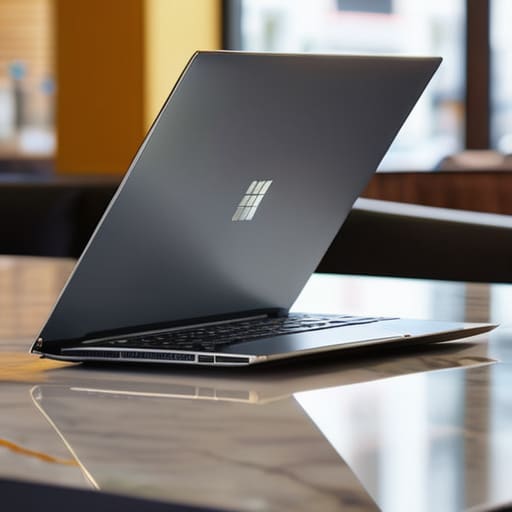
    Slim and portable The Ultrabook computer.

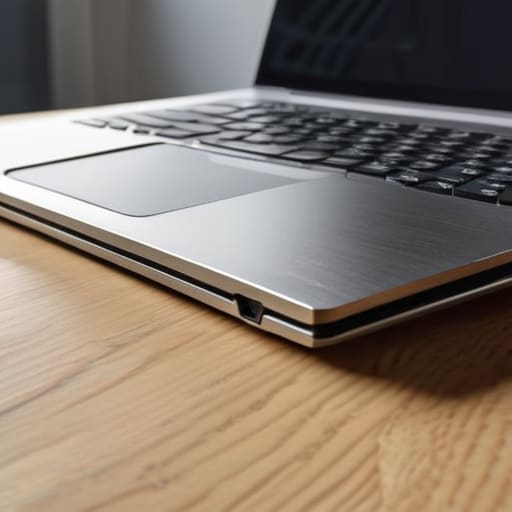
    An ultrabook is a high-end, ultra-portable personal computer designed with a focus on extreme thinness and long battery life. These machines utilize highly integrated components to maintain a slim profile, aiming to provide a seamless mobile experience for users who are constantly on the move.

    I’ve spent a lot of time looking at these things through my magnifying glass, and I’ll tell you right now: they are a marvel of miniaturization, but they come with a trade-off. When you’re sitting in a coffee shop or a cramped airplane seat, having a device that doesn’t feel like a brick in your briefcase is a genuine luxury. However, you have to ask yourself if that slight reduction in weight is worth the fact that you can’t easily upgrade the internals once they’re soldered shut. It’s a trade-off between convenience and long-term utility.

    The Standard Laptop

    A robust hardware architecture, The Standard Laptop.

    A standard laptop is a versatile, all-purpose computing machine built to balance processing power, storage capacity, and physical durability. Unlike more specialized devices, these machines prioritize a robust hardware architecture that allows for a wider variety of ports, cooling systems, and internal expansion options.

    In my years of engineering, I learned that if you want something to last, you need room for it to breathe and space for parts to be replaced. A standard laptop might be a bit more cumbersome to lug around, but it offers a level of mechanical reliability that these ultra-thin gadgets often lack. You aren’t just buying a screen and a keyboard; you’re buying a tool that can actually handle a heavy workload without overheating or becoming obsolete the moment a single chip fails.

    Comparison of Ultrabooks vs. Standard Laptops

    Feature Ultrabook Standard Laptop
    Primary Focus Portability and Slim Design Versatility and Performance
    Weight Ultra-lightweight Moderate to Heavy
    Battery Life Long-lasting Variable
    Performance Optimized for efficiency High-end/Gaming capability
    Port Selection Limited (USB-C/Thunderbolt) Extensive (HDMI, USB-A, SD)
    Price Premium/High Budget to Mid-range
    Best For Frequent travelers and students Gamers, creators, and power users

    The Truth About Ultrabook Performance vs Standard Laptop Reality

    The Truth About Ultrabook Performance vs Standard Laptop Reality.

    Look, it’s easy to get blinded by a benchmark score on a glossy spec sheet, but you need to understand that performance isn’t just about how fast a chip can cycle; it’s about how long it can actually sustain that speed. When you’re choosing between an ultrabook and a standard laptop, you aren’t just buying raw power—you’re buying how that power manages heat and energy over a long afternoon of work.

    In my experience, ultrabooks are built for the sprint. They use low-voltage processors designed to keep things thin and quiet, which is fine for checking emails or writing a report, but the moment you push them, they hit a thermal ceiling. They start to throttle performance to prevent the chassis from melting in your hands. A standard laptop, on the other hand, has the physical volume to house better cooling systems and higher-wattage components. It’s bulkier, sure, but it doesn’t quit when the workload gets heavy.

    If you need a machine that can handle heavy multitasking or sustained processing without slowing to a crawl, the standard laptop is the clear winner. Don’t let the slim profile of an ultrabook fool you into thinking it can do the heavy lifting.

    Laptop Portability vs Power What Actually Works in the Field

    Here’s the thing about the portability versus power debate: it’s a trade-off that most marketing departments try to hide behind glossy adjectives. In my years of engineering, I learned that you can’t cheat the laws of physics. You either want a machine that can handle a heavy workload without overheating, or you want something that won’t break your back when you’re moving from the office to the kitchen table. You rarely get both in one chassis, and if a salesperson tells you otherwise, keep your wallet closed.

    When you take an ultrabook into the field, you’re betting on convenience. They are light, sure, but that thin profile means they have almost no thermal headroom. If you try to run something intensive, they’ll throttle their speed just to keep from melting the casing. A standard laptop, on the other hand, is a different beast entirely. It’s heavier and bulkier, but that extra volume allows for better cooling and more robust components. It’s the difference between a lightweight commuter car and a workhorse diesel truck; one is easy to park, but the other actually moves the load.

    If you’re just browsing the web or checking emails on the go, the ultrabook wins for ease of use. But if you actually need to get work done without the machine choking on its own heat, the standard laptop is the only reliable choice.

    The Bottom Line: Don't Buy the Hype

    If you’re someone who actually works on the move or needs to plug in multiple peripherals without carrying a bag full of dongles, stick with a standard laptop; those ultrabooks trade essential connectivity for a slim profile that usually ends up being more trouble than it’s worth.

    Don’t mistake “thin” for “high-performance.” An ultrabook is designed for browsing and light office tasks, but if you try to run heavy software or demanding calculations, you’ll hit a thermal ceiling that no amount of marketing can fix.

    Before you swipe your card, decide what you value more: the convenience of a lightweight machine for coffee shop trips, or the long-term reliability and raw power of a machine built to actually handle a heavy workload.

    The Real Cost of Thinness

    “Marketing departments will try to sell you on how thin and light a device is, but as an engineer, I’ll tell you the truth: you’re usually paying a premium to trade away thermal headroom and repairability for a bit of aesthetic flair.”

    Roland Delacroix

    Making the Right Call for Your Wallet

    At the end of the day, choosing between an ultrabook and a standard laptop comes down to what you actually intend to do with the machine. If you are someone who is constantly on the move and only needs to handle emails, web browsing, or light document editing, the slim profile of an ultrabook is a reasonable trade-off. However, if you are looking for a machine that can handle heavy lifting—like video editing, complex spreadsheets, or long-term thermal stability—you are going to find those thin ultrabooks frustratingly limited. Don’t let the sleek aesthetics distract you from the fact that standard laptops offer the thermal headroom and port selection you actually need for serious work. I’ve seen too many people buy into the “thinner is better” myth only to realize they’ve bought a glorified tablet that throttles its own speed the moment things get difficult.

    My advice is simple: stop looking at the marketing brochures and start looking at the build specifications. A tool is only useful if it meets the demands of the job without failing you when the pressure is on. Whether you choose the portability of an ultrabook or the brute force of a traditional laptop, make sure you are buying for reliability and longevity rather than just chasing the latest trend. Invest in hardware that feels solid in your hands and performs consistently over the years. You worked hard for your money; don’t spend it on expensive plastic that won’t be worth anything in twenty-four months.

    Frequently Asked Questions

    If I go with an ultrabook to save weight, am I going to regret it when I can't plug in my external hard drives or a standard mouse?

    You’re hitting on the exact problem with this “thin-and-light” trend. If you go with an ultrabook, you’re almost certainly going to regret the lack of ports. Most of them have stripped everything down to just one or two USB-C slots. You’ll end up carrying a “dongle bag”—a collection of plastic adapters just to plug in a simple mouse or a hard drive. It defeats the whole purpose of being portable if you’re lugging extra gear.

    Are these thin-and-light models actually going to overheat and throttle my speed when I'm actually trying to get work done?

    Here’s the short answer: Yes, they absolutely can. When you shrink a machine down to the size of a notepad, you’re fighting the laws of thermodynamics. Those thin ultrabooks lack the physical volume for decent heat sinks and fans. If you start running heavy computations or long video renders, the system will throttle the CPU just to keep from melting the internal components. If your work demands sustained power, don’t let that slim profile fool you.

    How much more am I realistically paying for the "slim" design versus getting a machine that's built to actually last five or ten years?

    You’re paying a “thinness tax,” and it’s steeper than the sticker price suggests. When you buy an ultrabook, you aren’t just paying for a slimmer chassis; you’re paying for miniaturized, integrated components that are nearly impossible to repair. A standard laptop gives you modularity—swappable RAM or easy SSD access. With an ultrabook, once a single soldered chip fails in five years, the whole machine becomes expensive scrap metal. Stick to the bulk if you want longevity.

  • Buying Advice for Mirrorless Cameras

    Buying Advice for Mirrorless Cameras

    I spent three decades in manufacturing, where if a component wasn’t built to spec, the whole line ground to a halt. I carry that same mindset when I look at the current market for photography gear. Nowadays, it feels like every manufacturer is more interested in selling you a subscription to a cloud service or a body made of flimsy, hollow plastic than they are in actual build quality. You walk into a store looking for the best mirrorless cameras, and you’re met with a mountain of marketing jargon that tells you nothing about how the device will actually hold up in the field or how intuitive the controls are when you’re trying to capture a fleeting moment.

    I’m not here to recite a spec sheet that you can find on any retail website. I’ve sat down with my notepad and looked past the shiny bells and whistles to find the machines that actually offer mechanical reliability and meaningful performance. In the following list, I’m going to walk you through five specific models that earn my respect. You’ll learn which cameras are worth your hard-earned money and which ones are just overhyped gadgets destined to end up in a junk drawer by next year.

    Table of Contents

    The Workhorse You Can Trust: Fujifilm X-T5

    The Workhorse You Can Trust: Fujifilm X-T5

    I’ve spent enough time around assembly lines to know that if a machine isn’t built for heavy use, it’s just a toy. The Fujifilm X-T5 feels like a piece of properly engineered equipment. It’s got those tactile, physical dials on top that let you adjust your settings without diving into a digital menu that looks like it was designed by a teenager. When you’re out in the field, you want to feel the click of the shutter and the turn of the dial, not hunt for a touch-screen icon.

    Built for the Professionals: Sony A7 IV

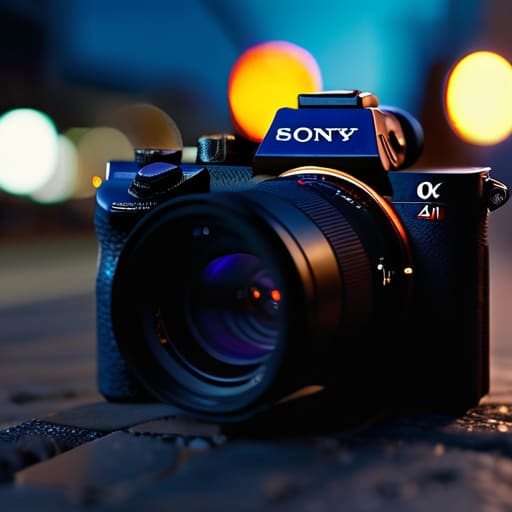
    Built for the Professionals: Sony A7 IV.

    Now, if you’re looking to step up into a more serious ecosystem, the Sony A7 IV is hard to ignore. It’s the kind of tool that prioritizes technical precision above all else. The autofocus system is incredibly snappy, which is vital because half the time, the most important moment happens before you can even react. In my engineering days, we called that “response time,” and in photography, it’s the difference between a keeper and a wasted shot.

    The Compact Reliable: Ricoh GR III

    The Compact Reliable: Ricoh GR III camera.

    Sometimes, you don’t need a massive rig that requires a dedicated carrying case and a prayer. The Ricoh GR III is what I call a “specialist tool.” It’s small enough to fit in a jacket pocket, but don’t let the size fool you into thinking it’s a cheap plastic trinket. It packs a punch that most of these oversized mirrorless setups can’t match when it comes to pure portability.

    The All-Rounder: Canon EOS R6 Mark II

    Canon has a knack for making gear that feels intuitive, and the R6 Mark II is a prime example of that philosophy. It’s a very balanced machine—not too heavy, but not so light that it feels like a child’s plaything. The ergonomics are excellent; the grip is deep enough that your hand won’t cramp up after twenty minutes of shooting, which is a design detail many manufacturers seem to forget these days.

    The Budget-Conscious Choice: Nikon Z5

    Not everyone wants to drop a month’s mortgage on a piece of electronics, and frankly, I don’t blame them. The Nikon Z5 is a great example of getting honest value for your money. It doesn’t have all the bells and whistles of the high-end professional models, but it handles the fundamentals—exposure, focus, and build—with more grace than most of the “budget” cameras I see in big-box stores.

    Bottom Line: Don't Buy the Hype

    Stop chasing every single megapixel listed on the box; if the build quality is flimsy and the ergonomics are garbage, you won’t enjoy using it, no matter how high the resolution is.

    Look for weather sealing and solid metal mounts—you want a tool that can survive a bit of dust or a sudden drizzle, not a piece of tech that dies the moment it leaves the air-conditioned living room.

    Prioritize a camera with intuitive controls that you can operate by feel, because if you have to dive into three sub-menus just to change your shutter speed, the engineering has failed you.

    The Bottom Line on Gear

    I don’t care how many megapixels a manufacturer throws at you in a glossy brochure; if the build quality is flimsy and the menu system is a labyrinth, you aren’t owning a tool—you’re owning a headache. Buy for the reliability of the sensor and the durability of the chassis, not the hype.

    Roland Delacroix

    The Bottom Line

    Look, I’ve spent enough time looking at spec sheets to know that a higher megapixel count doesn’t always mean a better photo. Whether you decide to go with a high-end professional body or something more compact for travel, the goal remains the same: you need a tool that responds when you press the shutter. Don’t let the marketing departments fool you into thinking you need every single bell and whistle available on the market. Focus on finding a camera with reliable autofocus and a build quality that won’t crumble the first time you set it down on a dusty workbench. If the ergonomics feel wrong in your hands, it doesn’t matter how many features it has; you won’t use it.

    At the end of the day, a camera is just a piece of hardware designed to capture a moment. It is a means to an end, not the end itself. I’ve seen too many people get caught up in the “gear treadmill,” constantly upgrading to the latest shiny gadget only to realize they haven’t actually learned how to compose a decent shot. Buy something solid, learn the manual settings, and then get out there and use it. The best camera in the world is useless if it’s sitting in a padded bag on your shelf. Stop worrying about the tech and start focusing on the image.

    Frequently Asked Questions

    Is it worth spending the extra money on a more expensive lens, or can I get away with the basic kit lens for a while?

    Look, I’ve seen enough cheap components fail to know that you get what you pay for. The kit lens is fine for learning the basics of exposure and composition, but it’s usually just a collection of mediocre glass held together by plastic. If you find yourself getting frustrated by blurry edges or poor low-light performance, stop fighting the gear and invest in a decent prime lens. It’s better to own one solid tool than three mediocre ones.

    How do I know if a camera body is actually built to last, or if it's just going to fail on me after a year of heavy use?

    Look, don’t just trust the glossy brochure. You need to get your hands on the thing. If the dials feel mushy or the buttons click like a cheap toy, walk away. I look for magnesium alloy chassis instead of polycarbonate, and I check the weather sealing—look for those rubber gaskets around the ports. If it feels balanced and the build has some weight to it, it’s likely built to endure, not just to look pretty on a shelf.

    Do I really need all these advanced digital features, or should I stick to something simpler that focuses on solid mechanics and ease of use?

    Look, I get the temptation to strip it all back, but you have to find a middle ground. You don’t need a camera that requires a software update just to change the ISO, but you also shouldn’t ignore modern autofocus. If the electronics are too complex, they become a distraction. My advice? Look for a body with tactile, physical dials. If you can control the exposure with your fingers without staring at a screen, you’ve found a winner.

  • Selecting the Ideal Tablet for Student Life

    Selecting the Ideal Tablet for Student Life

    I was sitting in my workshop last week, cleaning the dust out of an old Marantz receiver, when my grandson came in complaining that his brand-new, high-priced device wouldn’t even hold a charge through his afternoon seminar. It’s the same old story: manufacturers are selling kids a shiny, overpriced piece of glass and calling it a tool. Most of the marketing out there for a tablet for students is nothing more than expensive plastic wrapped in clever advertising designed to drain a parent’s bank account. They promise “limitless creativity,” but they don’t mention the flimsy build quality or the software that lags the second you try to open a heavy PDF.

    I’m not here to sell you on the latest bells and whistles or some flashy ecosystem that requires a monthly subscription just to function. My goal is simple: I want to help you find a device that actually works when you need it to. I’ve spent my career looking at how things are built, and I’m going to apply that same scrutiny here. I’ll show you which models have the battery life to survive a full day of lectures and which ones are just overhyped junk waiting to fail you mid-exam.

    Table of Contents

    Best Budget Tablets for College That Wont Break the Bank

    Best Budget Tablets for College That Wont Break the Bank

    If you’re looking for the best budget tablets for college, my advice is to stop looking at the flashy advertisements and start looking at the spec sheets. You don’t need a thousand-dollar machine to get through a semester of lectures; you just need something that won’t die halfway through a chemistry seminar. I’ve seen too many kids drop a fortune on a high-end device only to realize they’re paying for a fancy camera they’ll never use. Look for something mid-range that prioritizes tablet battery life for long lectures over sheer processing power.

    When I’m evaluating these cheaper models, I check the build quality first. If it feels like a toy, it’s going to break in a backpack by midterms. You want something with decent stylus compatibility for students so you can actually use digital note-taking apps without the pen lagging like a piece of junk. If the device can handle a PDF and a basic stylus without overheating, you’ve found a winner. Don’t let the marketing fool you—focus on the hardware that actually serves your coursework, not the bells and whistles.

    Why Tablet Battery Life for Long Lectures Actually Matters

    Why Tablet Battery Life for Long Lectures Actually Matters

    Look, I’ve seen plenty of engineers walk into a meeting with a high-spec laptop only to spend the first twenty minutes hunting for a wall outlet. It’s embarrassing, and it’s a waste of time. When you’re sitting in a lecture hall that’s packed like a tin can, finding an available power socket is a losing battle. If you’re relying on tablet battery life for long lectures to get you through a three-hour seminar, you can’t afford to be playing a game of “percentage chicken” with your device.

    A tablet is supposed to be a tool, not a tethered appliance. If you’re using various digital note taking apps to scribble down diagrams or annotate slides, your screen is constantly active, which drains the cells faster than you’d think. I don’t care how many gigabytes of RAM a device has if it dies halfway through a chemistry lecture. You need a machine that stays reliable from the first bell to the last, or you might as well just stick to a paper notebook and a pencil.

    Five Hard Truths Before You Swipe Your Credit Card

    • Stop obsessing over screen resolution and start looking at the chassis. If the casing feels like a cheap toy, it’s going to crack the first time it slides into a crowded backpack. Look for reinforced edges and a build that doesn’t flex when you apply pressure.
    • Don’t get blinded by “stylus compatibility” marketing. A pen is useless if the digitizer has lag. If you’re taking handwritten notes, test the latency; there is nothing more frustrating than your digital ink trailing three inches behind your actual hand movement.
    • Check the port situation before you buy. I’ve seen too many “sleek” designs that omit a standard USB-C port or a headphone jack, forcing you to carry a bag full of dongles just to plug in a thumb drive or a pair of reliable wired earbuds.
    • Ignore the “all-day battery” claims on the box. Manufacturers test those in a vacuum with the screen brightness turned all the way down. In the real world, with Wi-Fi on and a PDF open, that battery life will drop significantly faster. Aim for a spec that’s higher than what you think you need.
    • Make sure the operating system isn’t a walled garden. You need a device that lets you move files between your laptop and your tablet without needing three different proprietary apps and a prayer. If it’s too complicated to move a simple spreadsheet, it’s a bad tool.

    The Bottom Line: What You’re Actually Paying For

    Don’t get blinded by a high price tag; a tablet’s worth is measured by its ability to run your essential software without lagging or overheating halfway through a study session.

    Prioritize build quality and battery endurance over flashy gimmicks—if you can’t rely on the device to last through a three-hour lecture, it’s just an expensive paperweight.

    Read the fine print on accessories; many manufacturers charge a premium for styluses and keyboards that feel like cheap toys, so factor those real-world costs into your budget from the start.

    ## The Real Cost of Cheap Hardware

    “I’ve seen enough flimsy, ‘bargain-bin’ electronics to know that if you’re saving fifty bucks today on a tablet with a cheap chassis and a mediocre processor, you’ll be spending two hundred more on a replacement by midterms when the thing inevitably gives up the ghost.”

    Roland Delacroix

    Making the Right Call

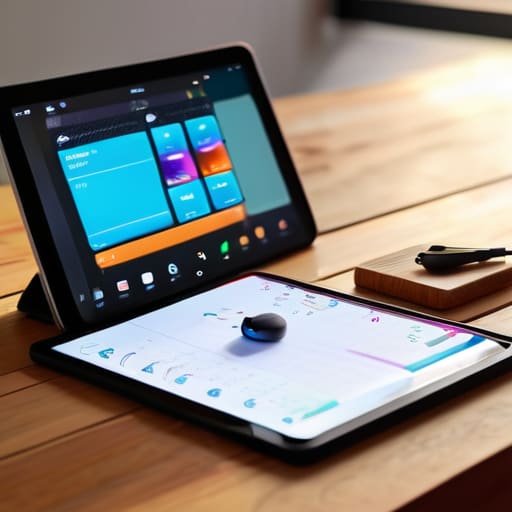
    Making the Right Call: Choosing school tablets.

    At the end of the day, choosing a tablet for school isn’t about finding the device with the most bells and whistles or the prettiest marketing campaign. It’s about finding a piece of hardware that serves its purpose without requiring a constant tether to a wall outlet or a repair shop. We’ve talked about why you shouldn’t overspend on flashy, fragile models and why battery longevity is the real metric of success during a twelve-hour day on campus. If you prioritize build quality and reliable performance over brand prestige, you’ll end up with a tool that actually assists your studies rather than becoming another expensive distraction sitting in your backpack.

    I know the tech industry loves to make you feel like you’re falling behind if you don’t own the latest, most expensive model on the market, but don’t fall for it. Your education is the investment here, not the gadget in your hand. Use these specs to find something that works as hard as you do, and then get back to the actual work of learning. A good tool should be invisible—it should just work every time you pick it up so you can focus on what really matters. Buy something sturdy, buy something reliable, and stop worrying about the hype.

    Frequently Asked Questions

    Is it actually worth spending the extra money on a stylus, or is that just another way to upsell me on more plastic?

    Look, I’ve seen enough “revolutionary” accessories end up in the junk drawer to be wary. If you’re just scrolling through PDFs or checking emails, skip the stylus; it’s an expensive piece of plastic you don’t need. But, if you’re actually taking handwritten notes in a lecture, a decent stylus is a tool, not a gimmick. It turns a media player into a digital notepad. Just make sure it has actual pressure sensitivity before you open your wallet.

    Can these tablets actually handle running heavy software like CAD or specialized engineering programs, or are they just for taking notes?

    Look, let’s be clear: most of these tablets are glorified digital notebooks. If you’re trying to run heavy CAD software or complex simulations, you’re going to run into a wall. These mobile processors just aren’t built for that kind of sustained computational load. Don’t let a salesperson tell you otherwise. For real engineering work, you still need a dedicated workstation with actual thermal management. Use the tablet for your notes, but keep your laptop for the heavy lifting.

    How much of a difference does screen glare really make when I'm trying to study in a bright library or a lecture hall?

    It makes a massive difference. I’ve spent enough time under fluorescent lights to know that a cheap, glossy screen is a recipe for a headache. If you’re sitting near a window in a lecture hall, you’ll spend half your time tilting the device just to see your notes through the reflection. Look for a matte finish or an anti-reflective coating; otherwise, you’re just staring at your own tired face instead of your textbook.

  • Essential Considerations When Buying a Gaming Laptop

    Essential Considerations When Buying a Gaming Laptop

    I was sitting at my workbench last Tuesday, tinkering with a 1970s Marantz receiver, when I saw another ad for a “cutting-edge” portable rig that looked more like a neon-lit toy than a piece of serious machinery. It’s the same old story: manufacturers wrap mediocre components in flashy RGB lighting and expect you to ignore the fact that the chassis feels like it was molded from recycled milk jugs. Most people looking for a gaming laptop guide end up drowning in a sea of marketing jargon and inflated benchmark scores that don’t account for how the machine actually behaves after three hours of heavy use. If you aren’t careful, you aren’t buying a computer; you’re just buying expensive plastic that’s destined for a landfill.

    I’m not here to sell you on the latest hype or tell you that more gigahertz always equals a better experience. My goal is to cut through the noise and give you a practical, engineering-focused gaming laptop guide that prioritizes thermal management, build integrity, and real-world longevity. I’ll show you how to spot the hidden flaws in a spec sheet before you open your wallet, ensuring you invest in a tool that actually performs when the pressure is on.

    Table of Contents

    Dont Get Tricked by Dedicated vs Integrated Graphics

    Dont Get Tricked by Dedicated vs Integrated Graphics

    Now, let’s talk about the engine under the hood, because this is where most folks blow their entire budget. You’ll see marketing teams throwing around big numbers, but you need to understand the fundamental difference between dedicated vs integrated graphics. An integrated chip is built right into your processor; it’s fine for checking emails or watching a movie, but it’ll choke the second you try to run a modern game. If you’re serious about gaming, you need a dedicated GPU—a separate piece of hardware with its own memory. It’s the difference between a reliable diesel engine and a lawnmower motor.

    However, don’t just chase the highest number on the spec sheet without thinking. I’ve seen plenty of “high-end” machines that look great on paper but fail in practice because they can’t handle the heat. If the manufacturer didn’t invest in decent thermal management in laptops, that expensive chip is going to throttle its speed just to keep from melting. You’ll end up with all the cost of a premium card but the performance of a budget model because the cooling system is nothing but cheap, thin heat pipes.

    The Best Gpu for Gaming Laptops That Actually Delivers

    The Best Gpu for Gaming Laptops That Actually Delivers

    Now, let’s talk about the heart of the machine: the graphics processing unit. When you’re scanning spec sheets, you’ll see a laundry list of numbers designed to make your head spin. But here’s the truth—the best gpu for gaming laptops isn’t just about the highest model number on the sticker; it’s about whether the chassis can actually handle the heat that comes with it. I’ve seen plenty of high-end cards throttled down to half their power because the manufacturer decided to save a few dollars on the heat pipes.

    If you’re looking at a mid-range card, pay close attention to the thermal management in laptops. A powerful chip is useless if the cooling system is a joke. You can buy the most expensive silicon on the market, but if the fans sound like a jet engine and the deck gets hot enough to fry an egg, you’ve bought yourself a very expensive paperweight. Don’t just chase the raw numbers; look for a build that prioritizes airflow and solid laptop cooling solutions. If they didn’t spend the money on the internals, they definitely didn’t spend it on the cooling.

    Five Things the Salesman Won't Tell You Before You Swipe Your Card

    • Check the thermal design, not just the clock speed. I’ve seen plenty of high-end chips throttled to a crawl because the manufacturer decided to save a few cents on copper heat pipes and fan housing. If the vents look like an afterthought, that laptop is a ticking time bomb of heat.
    • Demand a high-refresh-rate screen, but don’t get distracted by color accuracy alone. A smooth 144Hz refresh rate makes a massive difference in how responsive the machine feels, and if you’re stuck with a sluggish 60Hz panel, all that processing power in the back is essentially wasted.
    • Look for upgradeability. Most of these modern “ultrabooks” have the RAM soldered directly to the motherboard, which is a nightmare for anyone who actually wants their machine to last more than two years. If you can’t pop the back off and add a stick of memory or a second SSD, you’re buying a disposable toy.
    • Test the keyboard’s physical travel. I don’t care how many RGB lights are pulsing under the keys; if the switches feel mushy and lack tactile feedback, you’re going to hate using it. A decent machine should have enough key travel to feel substantial, not like you’re tapping on a piece of glass.
    • Don’t trust the “battery life” claims on the box. No gaming laptop is a marathon runner. If you’re planning to play anything intensive, you’ll be tethered to a wall outlet anyway. Instead, check the wattage of the power brick—if it’s undersized, your performance will tank the moment you unplug.

    The Bottom Line Before You Open Your Wallet

    Don’t let a high-end GPU go to waste; if you pair a powerful graphics card with a cheap, underpowered processor, you’re just buying expensive scrap metal that can’t keep up.

    Prioritize thermal management over flashy aesthetics, because a laptop that can’t vent heat properly will throttle its performance and burn out its components long before you’re done with it.

    Check the build quality of the chassis and the cooling vents before you buy; if the manufacturer cut corners on the physical construction to save a buck, that high-end hardware won’t stay stable for long.

    ## The Real Cost of Cutting Corners

    “When you’re looking at a spec sheet, don’t just look at the numbers on the screen; look at the chassis underneath them. A high-end processor is useless if the manufacturer paired it with a cheap, flimsy cooling system that’s going to throttle your performance the moment things get serious.”

    Roland Delacroix

    The Bottom Line

    The Bottom Line: prioritize hardware build quality.

    Look, I’ve spent enough time looking at schematics to know that you can’t cheat physics. If you ignore the thermal constraints or settle for a bottom-tier GPU just because the chassis looks sleek, you’re going to regret it within six months. We’ve covered the essentials: don’t let the marketing departments fool you about integrated graphics, and make sure you’re picking a GPU that actually has the raw horsepower to sustain your frame rates. Most importantly, keep an eye on that build quality. If the hinge feels flimsy or the cooling vents are choked by cheap plastic, it doesn’t matter how fast the processor is—that machine is a ticking time bomb for hardware failure.

    At the end of the day, a gaming laptop should be a tool that serves you, not a piece of junk that forces you to constantly troubleshoot. I know it’s easy to get swept up in the flashy RGB lights and the endless list of “next-gen” buzzwords, but I want you to buy for longevity. Take my advice: do your homework, check the cooling specs, and don’t be afraid to walk away from a deal that feels too good to be true. Spend your hard-earned money on something that is built to last, and you won’t find yourself back in the electronics aisle looking for a replacement before the year is out.

    Frequently Asked Questions

    How much weight and bulk should I realistically expect if I actually want to carry this thing around?

    Look, if you’re expecting a thin, lightweight machine that fits in a standard briefcase, you’re dreaming. To get decent cooling and a real GPU, you’re looking at a beast. Most solid gaming laptops weigh between 5 and 7 pounds. Add a bulky power brick—and you’ll need a big one—and you’re pushing 9 or 10 pounds total. If it feels light, it’s probably underpowered and prone to overheating. Plan for the bulk.

    Is it worth paying the extra premium for a higher refresh rate screen, or is that just more marketing fluff?

    Look, if you’re just browsing spreadsheets, a standard 60Hz screen is fine. But if you’re actually gaming, that extra refresh rate isn’t just marketing fluff—it’s about responsiveness. A 144Hz panel makes motion look fluid instead of a stuttering mess. I’ve seen too many folks buy a powerhouse rig only to be bottlenecked by a sluggish display. If the budget allows, pay the premium. It’s the difference between a smooth tool and a frustrating one.

    How do I tell if the cooling system is actually built to last, or if it's just going to choke on dust in six months?

    Look, don’t just trust the marketing fluff about “advanced thermal management.” Open the chassis if you can, or look closely at the vent design. You’re looking for thick copper heat pipes and substantial fans, not tiny, flimsy blades. If the vents are choked with tiny, restrictive slits, that machine is a death trap for dust. If you can’t see clear airflow paths, you’re buying a glorified space heater that’ll throttle itself to death by next summer.

  • Finding the Best Budget Smartphones for Daily Use

    Finding the Best Budget Smartphones for Daily Use

    I spent thirty years in manufacturing, where if a component wasn’t built to spec, it was scrapped. Nowadays, I look at the tech aisle and see nothing but a sea of overpriced glass and flimsy, hollow plastic. It feels like companies are charging you a premium just for a fancy logo, rather than for actual durability or performance. Most people think they have to shell out a thousand dollars just to get a reliable device, but that’s a lie. Finding decent budget smartphones shouldn’t feel like a gamble, yet most of the “cheap” options out there are just disposable junk that will quit on you in six months.

    I’ve sat at my workbench and put several of these devices through the wringer to see which ones actually hold up. In this list, I’m cutting through the marketing fluff to show you five specific models that offer real value without the headache. I’ll tell you exactly which ones have the build quality you deserve and which ones are just expensive paperweights. If you want a tool that stays powered on and does its job without needing a manual, you’re in the right place.

    Table of Contents

    The Motorola Moto G Power: Built for Longevity

    The Motorola Moto G Power: Built for Longevity.

    When I look at this device, I’m not impressed by the flashy screen resolution or the social media gimmicks. What caught my eye is the battery capacity. In my engineering days, we focused on energy density and efficiency, and Motorola has managed to prioritize a battery that actually lasts through a full workday without needing to hunt for a wall outlet by noon. It’s a practical machine for someone who doesn’t want to be tethered to a charging cable like a prisoner.

    Samsung Galaxy A54: The Reliable Middle Ground

    Samsung Galaxy A54: The Reliable Middle Ground

    Samsung has a habit of making things that look expensive, and the A54 is a perfect example of that. The chassis feels substantial in the hand, lacking that hollow, creaky sensation you get with the ultra-cheap models. While it isn’t a flagship, the integration of the hardware and the display is surprisingly tight. I appreciate that they haven’t completely sacrificed the user experience just to shave a few dollars off the manufacturing cost.

    Google Pixel 7a: Smart Software, Solid Hardware

    Google Pixel 7a: Smart Software, Solid Hardware

    Now, I’m usually skeptical of “smart” features that claim to do your thinking for you, but Google’s processing on the 7a is actually quite impressive. The way the software manages the hardware resources prevents that unnecessary overheating I often see in cheaper chipsets. It’s a smooth experience, and for once, the camera actually produces a usable image without needing a dozen different apps to fix the mess.

    Nokia G42: A Lesson in Repairability

    I have to give credit where it’s due: Nokia is actually thinking about the lifecycle of the product here. They’ve marketed this phone as being “repairable,” and as a man who has spent his life fixing broken systems, I find that refreshing and necessary. You can actually swap out parts without needing a specialized laboratory or a degree in micro-soldering. It’s a refreshing departure from the “disposable” culture of modern tech.

    Xiaomi Redmi Note 12: High Specs, Low Cost

    If you are the type of person who wants to see every possible specification on a piece of paper, the Redmi Note 12 will satisfy you. On paper, the numbers are staggering for the price—more RAM, more storage, and a faster screen than most of its competitors. It’s an engineering marvel in terms of how much they managed to cram into such a low price bracket without the whole thing falling apart.

    The Bottom Line on Budget Tech

    Stop chasing the spec sheet; a high megapixel count doesn’t mean a thing if the processor is too weak to run the camera software without lagging.

    Hold the device in your hand before you buy—if it feels like a hollow, lightweight piece of cheap plastic, it’s going to break the first time it slips out of your pocket.

    Look for brands that actually provide software updates, because a phone that becomes obsolete in twelve months is just expensive electronic waste.

    The Real Cost of a Cheap Phone

    “Don’t let a low price tag fool you into thinking you’re getting a deal if the device feels like a hollow toy. I’ve spent enough years on factory floors to know that if the build quality is an afterthought, the internal components usually are too. A real budget phone shouldn’t just be cheap; it should be reliable enough to do its job without you having to babysit it every twenty minutes.”

    Roland Delacroix

    The Bottom Line on Budget Tech

    At the end of the day, picking a budget smartphone isn’t about finding the cheapest piece of junk on the shelf; it’s about finding the right balance between cost and mechanical reliability. We’ve looked at several options that prove you don’t need to hand over a thousand dollars just to have a device that handles your daily tasks without crashing. Whether you prioritize a battery that actually lasts through a full workday or a build quality that doesn’t feel like it’ll shatter if you drop it on the garage floor, the goal remains the same: value over hype. Don’t let the flashy advertisements convince you that every extra cent spent is going toward a better experience. Often, you’re just paying for a brand name and a thinner chassis.

    I’ve spent enough years in manufacturing to know that complexity is often the enemy of longevity. As you head out to make your purchase, keep your eyes on the specs that actually matter to your life, rather than the bells and whistles designed to distract you. You deserve technology that serves you, not the other way around. Buy something that is built to last, use it until the wheels fall off, and stop letting big tech companies dictate how much you should spend on a simple tool. Stick to your guns, do your homework, and buy with purpose.

    Frequently Asked Questions

    How long can I actually expect these cheaper models to receive security updates before they become useless?

    Here’s the cold truth: most budget manufacturers treat software like an afterthought. While the high-end flagship models might get four or five years of support, don’t expect much more than two years from these cheaper units. Some brands might even stop at one. If you aren’t getting regular security patches, you’re basically leaving your front door unlocked. Check the manufacturer’s fine print before you buy; otherwise, you’re just buying a paperweight in waiting.

    Is it worth spending a bit more for a better processor, or will a budget chip just make the whole thing lag after six months?

    Look, I’ve seen this a thousand times with mechanical parts: if you undersize the motor, the whole machine struggles. It’s the same with silicon. A bottom-tier chip might feel snappy on day one, but as soon as your apps update and demand more resources, you’ll be staring at a spinning loading icon. If you want a phone that lasts more than a season, spend the extra few bucks on a decent mid-range processor. Don’t buy future frustration.

    Can I actually swap out the battery myself if it starts to degrade, or are these new ones all glued shut?

    Look, I’ll give it to you straight: most of these modern handsets are a nightmare for DIY repairs. Unlike the gear I used to work with, these manufacturers have moved away from screws and clips in favor of heavy-duty industrial adhesive. They basically glue the battery into the chassis. Unless you’ve got a steady hand, a heat gun, and a lot of patience, you’re likely looking at a professional repair shop once that capacity starts to tank.