I was sitting on my living room floor last Tuesday, surrounded by a tangled nest of HDMI cables and a manual thick enough to be a Tolstoy novel, wondering why on earth we made things so complicated. I’ve spent thirty years in systems engineering, and I know a poorly designed interface when I see one. Most people think a successful soundbar setup requires a technician or a mountain of proprietary software, but that’s just marketing nonsense designed to make you feel inadequate. The truth is, if the hardware was built with any sense of logic, you shouldn’t need a PhD just to hear your dialogue clearly.
I’m not here to sell you on some “immersive cinematic experience” using buzzwords that mean nothing. Instead, I’m going to show you how to bypass the fluff and get your gear connected using the most reliable, straightforward methods available. We’ll skip the headache-inducing troubleshooting and focus on the physical connections and settings that actually matter. By the time I’m done, you’ll have a clean, functional system that works every time you hit the power button, without wasting a single cent on unnecessary gadgets.
Table of Contents
- Step-by-Step Instructions
- Stop Guessing Mastering Your Optical Cable Connection
- Beyond Bluetooth Pairing Making Your Wireless Subwoofer Synchronization Wor
- Five Things the Manual Won't Tell You About a Solid Setup
- The Bottom Line: Don't Get Fooled by the Box
- The Real Cost of Cheap Hardware
- Get It Right the First Time
- Frequently Asked Questions
Guide Overview
Tools & Supplies
- HDMI Cable (for ARC/eARC connection)
- Screwdriver (if wall mounting)
- Soundbar unit (1)
- Subwoofer (1)
- Remote control (1)
- Power cables (2)
Step-by-Step Instructions
- 1. First, clear your workspace and grab your cables. Don’t just dive in with whatever junk you found in a drawer; make sure you have a high-speed HDMI cable and the power cords. I’ve seen too many people try to use an old, frayed HDMI cable from 2010 and wonder why they’re getting constant signal dropouts.
- 2. Locate the HDMI (ARC) or eARC port on the back of your television. This is the most important part of the whole process. If you plug your soundbar into a standard HDMI port, it won’t work the way it’s supposed to. You need that specific ARC/eARC connection to allow the audio signal to travel back from the TV to the bar.
- 3. Connect the HDMI cable from that specific TV port to the corresponding HDMI port on your soundbar. Once that’s seated firmly, plug in the power cables for both the bar and the subwoofer. I always suggest plugging these directly into a reliable surge protector rather than a cheap power strip, especially if you’re running high-end gear.
- 4. Now, turn everything on and head into your TV’s settings menu. This is where most people get stuck and start cursing. Look for “Audio Output” or “Sound Settings” and make sure it is set to External Speakers or “Receiver.” If it stays on “Internal Speakers,” you’re just wasting your money on that soundbar.
- 5. Check your digital output format. You want to set this to “Bitstream” or “Pass-through” if your TV allows it. If you leave it on “PCM,” you’re essentially forcing the TV to do all the heavy lifting, which usually results in flat, lifeless sound that doesn’t do justice to the hardware.
- 6. If your soundbar came with a wireless subwoofer, plug it in and wait a minute. Most of these modern units use a proprietary wireless signal, so they should pair automatically once they have power. If the light on the back is blinking, it means it’s searching; just give it a few minutes to find its mate before you start panicking.
- 7. Finally, do a quick test run. Put on a movie you know well—something with a decent dynamic range—and adjust the volume. If the dialogue sounds muffled or the bass feels like it’s coming from a different room, go back to step four and double-check those TV audio settings. Most “broken” soundbars are actually just misconfigured TVs.
Stop Guessing Mastering Your Optical Cable Connection
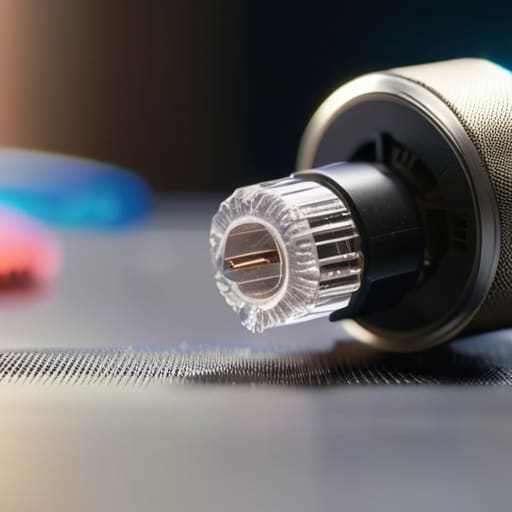
Now, let’s talk about the optical cable connection. I see people constantly struggling with this because they assume if it’s plugged in, it’s working. It’s not that simple. These cables use light to transmit data, which means even a tiny speck of dust on the tip of the connector can cause a signal drop or a complete loss of sound. Before you go calling tech support, grab a clean, dry cloth and wipe those ends down. Also, make sure you aren’t bending the wire at a sharp angle; these things are glass-core, and if you kink them, you’ve essentially broken the light path.
If you’ve got the cable seated correctly but the sound still feels “thin,” you likely need to look at your TV’s internal menu. Most modern sets default to a setting that doesn’t play nice with external hardware. You need to go into your audio output menu and ensure it’s set to “Optical” rather than “PCM” if you want the full range. Don’t settle for mediocre sound just because the factory settings are lazy. It’s a five-minute fix that makes a world of difference.
Beyond Bluetooth Pairing Making Your Wireless Subwoofer Synchronization Wor

Now, let’s talk about that wireless subwoofer. Manufacturers love to market these as “plug-and-play,” but in my experience, that’s rarely the case. You’ll often find the bass feels thin or, worse, it’s lagging behind the dialogue like a bad dubbed movie. If you’re struggling with wireless subwoofer synchronization, don’t immediately assume the unit is defective. Most of the time, it’s a matter of physical interference. These subwoofers operate on specific frequencies that don’t play well with your Wi-Fi router or even a large metal filing cabinet. I’ve learned that moving the sub just six inches to the left can be the difference between a muddy mess and a crisp, punchy low end.
If the hardware is positioned correctly but the sound is still off, you need to look at your optimizing audio settings within the soundbar’s internal menu. Some systems allow you to manually adjust the delay to compensate for the wireless lag. It’s a bit of a trial-and-error process, but it’s worth the effort to ensure the low frequencies actually land when they’re supposed to. Just remember: don’t settle for “good enough” when it comes to your bass.
Five Things the Manual Won't Tell You About a Solid Setup
- Stop tucking your soundbar behind the TV screen. If you block the driver with the edge of your television, you’re muffling the high frequencies and wasting the money you spent on the unit. Keep it clear and centered.
- Check your HDMI ports before you start plugging things in. Not every port on your TV is created equal; if you don’t plug the soundbar into the specific port labeled ARC or eARC, you’re going to be fighting with your remote all night just to change the volume.
- Don’t just throw your subwoofer in a corner and hope for the best. I’ve seen too many people hide them under a pile of cables. Place it on a hard, flat surface—not a thick carpet—to prevent the bass from sounding muddy and indistinct.
- Avoid the “wireless everything” trap. While manufacturers love to tout wireless connectivity, every wireless signal is a potential point of failure or interference. If you want a rock-solid connection that won’t drop out during a movie, use a physical cable whenever the option is there.
- Tighten your expectations on “Surround Sound” settings. Most people turn the virtual surround mode up to 100% and wonder why the audio sounds hollow and artificial. Keep those digital processing modes subtle; you want the hardware to do the heavy lifting, not a cheap software algorithm.
The Bottom Line: Don't Get Fooled by the Box
Prioritize physical connections like HDMI ARC or Optical whenever possible; wireless is convenient until it starts dropping signal or lagging during a movie.
If your subwoofer is acting up, don’t assume the hardware is broken—check the sync settings or move it closer to the main unit before you go out and buy a replacement.
Build quality matters more than “smart” features; if a soundbar feels like cheap, hollow plastic in your hands, it’s likely going to sound thin and tinny through your speakers.
The Real Cost of Cheap Hardware
I’ve spent enough years on manufacturing floors to know that if a setup process feels like a riddle, it’s usually because the manufacturer prioritized a flashy interface over actual engineering. A good soundbar should deliver clear audio the moment you plug it in, not force you to spend your Saturday afternoon troubleshooting a software glitch that shouldn’t exist in the first place.
Roland Delacroix
Get It Right the First Time
At the end of the day, setting up a soundbar shouldn’t feel like you’re trying to re-engineer a jet engine. We’ve covered the essentials: choosing the right connection method, whether that’s the reliability of an HDMI ARC setup or the simplicity of an optical cable, and ensuring your wireless subwoofer isn’t just a decorative box by getting that synchronization dialed in. I’ve seen too many people settle for subpar audio because they couldn’t get past the initial cable management or the pairing menu. Remember, it’s about the integrity of the signal from your source to your ears. If you take the time to verify your connections and avoid the shortcuts that lead to signal dropouts, you’ll avoid the frustration of having to tear the whole system apart a week later.
Technology moves fast, and a lot of it is designed to be disposable, but a well-configured audio system is something you can actually rely on for years to come. Don’t let the flashy marketing fool you into thinking a device works just because it looks good on a shelf. Once you’ve done the heavy lifting of a proper installation, you can finally sit back, turn off the distractions, and actually hear the nuance in your favorite films and music. You’ve put in the work to move past the “expensive plastic” phase and into a setup that delivers real, honest performance. Now, go ahead and enjoy the results.
Frequently Asked Questions
Why does my soundbar keep cutting out even though all the cables look like they're plugged in tight?
If your cables are seated tight but the audio is still dropping, you’re likely dealing with signal interference or a faulty handshake. First, check your HDMI cables; if they aren’t high-speed rated, they’ll choke on the data. Also, keep your wireless subwoofer away from your router. Those 2.4GHz signals fight for space, causing that annoying stutter. If that fails, swap the cable entirely. Don’t trust a “tight” connection if the copper inside is junk.
Is there any real difference between using an HDMI ARC port and a standard optical cable, or is it just marketing talk?
Look, it’s not just marketing fluff; there is a functional difference. An optical cable is a one-way street—it sends audio out, but it can’t talk back to your TV. HDMI ARC, on the other hand, creates a two-way conversation. It lets your TV remote control the soundbar volume automatically. If you want to avoid fumbling for two different remotes every time you sit down, stick with HDMI ARC. It’s simply more efficient.
How do I stop that annoying delay between the actors' lips moving and the sound actually coming out of the bar?
That’s called audio lag, and it’s enough to drive anyone crazy. It usually happens because your TV is working too hard to process the video before sending the sound. First, check your TV settings for an “Audio Delay” or “Lip Sync” adjustment—most modern sets have one. If that doesn’t fix it, ditch the optical cable and switch to HDMI ARC/eARC. It’s a much more direct communication line and usually solves the timing issue immediately.
