I was sitting at my workbench last Tuesday, trying to interface a vintage DAC with my new laptop, when a cheap, $15 dongle I’d picked up decided to quit the job entirely. It didn’t just fail; it overheated so badly it nearly scorched my desk. It’s the same story I see every week: manufacturers are stripping ports off perfectly good machines and then selling you a flimsy, glorified piece of plastic to compensate. Most of the advice you’ll find online is just a marketing shell game, but if you’re looking for a real usb c hub guide that focuses on electrical stability rather than flashy RGB lights, you’ve come to the right place.
I’m not here to sell you on the latest “lifestyle” gadget or some overhyped ecosystem. My goal is to look under the hood and tell you which hubs have the proper thermal management and build quality to actually last more than a month. I’ll walk you through the specs that actually matter—like power delivery and data throughput—so you can stop throwing money down the drain. This is about finding tools that work, plain and simple.
Table of Contents
Thunderbolt vs Usb C Compatibility Dont Get Tricked
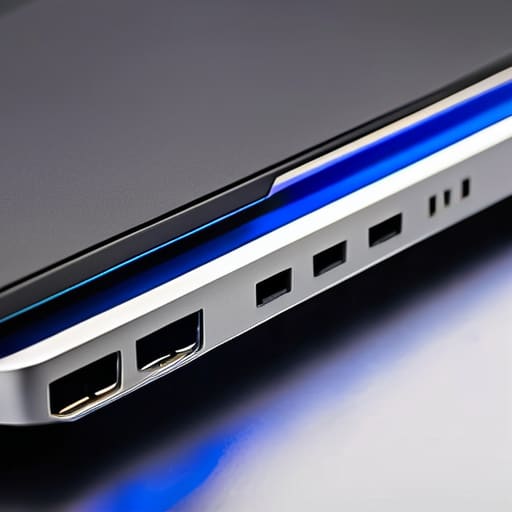
Now, this is where most people trip up and throw their hard-earned money down the drain. You’ll see these small, rectangular ports on your laptop and assume anything that fits will work perfectly. That’s a dangerous assumption. There is a massive difference between a standard USB-C port and a Thunderbolt port, and if you don’t understand thunderbolt vs usb-c compatibility, you’re going to end up with a hub that can’t drive your high-resolution screen or move files at a decent clip.
Think of it like this: the port is the doorway, but the protocol is the bandwidth of the hallway behind it. A standard USB-C hub might be fine for a mouse or a thumb drive, but if you’re looking for serious external monitor support via usb-c or high-speed data, a basic hub will choke. If you’ve invested in a high-end machine like a MacBook Pro, you likely have Thunderbolt ports. Buying a cheap, non-Thunderbolt multiport adapter is like putting budget tires on a luxury sedan; it’ll move, but you’ll never get the performance you actually paid for. Don’t let the marketing fool you.
Usb C Hub Power Delivery Reliable Juice or Total Junk
Here is where most people trip up and end up with a dead laptop right when they need it most. When you’re looking at usb-c hub power delivery specs, don’t just look at the big number on the box. If a manufacturer claims 100W delivery, that doesn’t mean your laptop is getting all 100W. The hub itself is a piece of hardware that needs its own electricity to run the ports, the chips, and the cooling. Usually, the hub “steals” about 15W for itself, leaving you with less than advertised. If you’re using a high-drain device like a usb-c hub for macbook pro while running external drives, that power drop is even more significant.
I’ve seen too many folks buy a cheap, unbranded adapter only to find their battery draining even while plugged in. That’s a recipe for hardware failure. You want a unit that handles the handshake between the charger and your computer without overheating. If the hub feels hot to the touch, it’s struggling to manage the load. Buy a unit with a solid casing—aluminum is your friend here—because heat is the silent killer of reliable electronics.
Five Things to Check Before You Open Your Wallet
- Look at the casing material. If it’s lightweight, hollow-feeling plastic, put it back on the shelf. I want to see aluminum or a heavy-duty alloy that can actually dissipate heat when you’re running multiple peripherals.
- Count the ports, but don’t just look at the number. Make sure they aren’t all crowded together. There’s nothing more frustrating than a hub where a standard thumb drive blocks the port right next to it.
- Check the data transfer speeds on the spec sheet. If they don’t explicitly state whether it’s USB 3.0, 3.1, or 3.2, they’re hiding something. Don’t buy a hub that turns your high-speed external drive into a snail.
- Verify the HDMI output resolution. A lot of these cheap units claim to be “4K compatible” but they actually top out at a stuttering 30Hz. You want 60Hz, or you’ll be staring at a laggy screen all day.
- Read the fine print on the power requirements. If you’re planning to plug in a hard drive and a keyboard, ensure the hub has enough overhead to handle the draw without dropping the connection halfway through a file transfer.
The Bottom Line: What to Look for Before You Buy
Check the build quality first; if the casing feels like a cheap toy, the internal circuitry probably is too. Look for aluminum housings that can actually dissipate heat.
Don’t get blinded by the number of ports. A hub with ten flimsy connections is useless if the data speeds crawl or the connection drops every time you bump your desk.
Verify the specific power requirements of your peripherals. If you’re plugging in a hard drive and a monitor, make sure the hub’s power delivery can actually handle the load without crashing.
The Real Cost of Cutting Corners
“I’ve seen enough cheap components fail in my time to know that a hub isn’t just a bridge between your laptop and your peripherals; it’s a single point of failure. If you buy the cheapest plastic dongle on the market just to save twenty bucks, you’re going to end up losing much more in fried data cables and lost productivity.”
Roland Delacroix
The Bottom Line
Look, I’ve seen enough cheap components fail in my time to know that a USB-C hub isn’t just a convenience; it’s the backbone of your workstation. If you don’t pay attention to the distinction between Thunderbolt and standard USB-C, or if you ignore the actual wattage being passed through the Power Delivery ports, you’re essentially asking for trouble. Don’t let a shiny marketing campaign fool you into buying a device that can’t handle a steady data stream or, worse, one that overheats and shuts down your peripherals mid-task. Stick to the specs, check the build quality, and make sure the hub is rated for the specific load you intend to put on it. If it feels like a hollow piece of plastic in your hand, it’ll likely act like one on your desk.
At the end of the day, my goal is to make sure you walk away with a tool that stays out of your way and just does its job. Technology should serve you, not become another source of frustration that requires a troubleshooting manual every single morning. Invest your hard-earned money in reliability over flashiness, and you’ll find that a well-built hub is one of the few things in this modern tech landscape that actually lives up to the hype. Buy it once, buy it right, and then get back to your actual work.
Frequently Asked Questions
Will plugging a bunch of peripherals into this hub make my laptop run hotter or drain the battery faster?
Look, I’ve seen this happen more times than I’d like. If you’re running a dozen peripherals through one tiny hub, yes, you’re going to see some heat. That hub is working overtime to manage data and power, and that energy has to go somewhere. As for the battery, it’s a mathematical certainty: more devices mean more draw. If you aren’t plugged into a wall, don’t expect your laptop to stay topped up for long.
I’ve seen hubs that claim to support 4K video, but how do I know if it’ll actually work with my specific monitor without flickering?
Look, “4K support” is a marketing term that’s way too broad for my liking. Most of these cheap hubs claim 4K, but they’re only pushing 30Hz. That’s why your screen flickers or feels laggy—it’s like trying to run a high-speed turbine through a garden hose. You need to check the refresh rate. If it doesn’t explicitly say 4K at 60Hz, walk away. Don’t settle for anything less if you want a stable image.
If I use a hub with a built-in power adapter, do I still need to plug my original charger into the laptop?
Look, here’s the short answer: It depends on the hub’s wattage, but don’t take the manufacturer’s word for it. If your laptop needs 90W to run properly and that hub only passes through 45W, you’re going to see that dreaded “slow charger” warning. If you want to be safe and avoid draining your battery while working, plug your original charger directly into the laptop. Don’t trust a single point of failure.
